
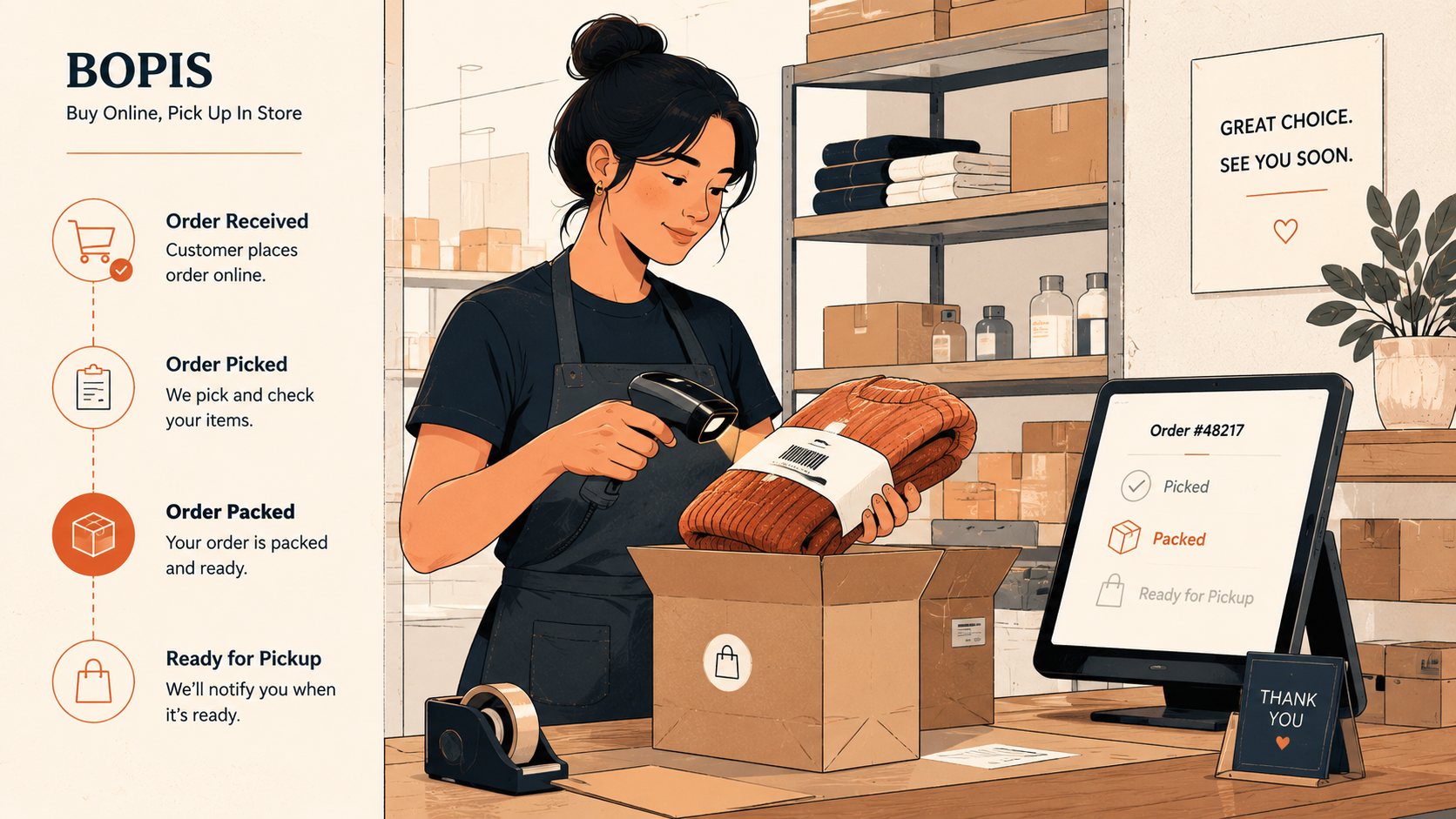
Most BOPIS programs don't fail because customers don't want them. They fail because the retailer can't handle the operational reality. Inventory drifts, store teams don't know about orders, customers aren't notified when to come pick up — and what looked like a quick win on the marketing brief becomes a customer service liability.
The retailers running BOPIS well aren't doing anything magical. They have three specific things in place. If you're considering BOPIS, or you've launched it and it's not working, this guide walks through each one and what to do about it.
Prerequisite 1: Real-time inventory accuracy
This is the foundational requirement. Your e-commerce platform needs to know, within seconds, what every store actually has in stock. Without this, your website will sell items that don't exist.
The math here is brutal. Imagine your inventory syncs from your point-of-sale to Shopify every 15 minutes via a batch job. A customer buys the last unit of a product in-store at 10:01. Until the next sync at 10:15, your website still shows that product as available. Anyone who places a BOPIS order in those 14 minutes is buying a ghost. When the store team goes to pick the order, the shelf is empty.
Multiply this across hundreds of SKUs and several stores, and you have a steady stream of "we're sorry, we have to cancel your order" calls.
Real-time inventory sync solves this by updating Shopify within seconds of a POS sale, not on a schedule. The technical difference matters: event-driven sync triggers on each transaction; batch sync runs on a clock. Event-driven scales without latency. Batch sync trades responsiveness for simplicity, and breaks BOPIS, and everything else.
If your current inventory sync runs on a schedule — even every 5 minutes — you'll see overselling on BOPIS orders, especially for fast-moving inventory.
Prerequisite 2: A store-side workflow
When a BOPIS order is placed, someone at the store needs to:
- Be notified that an order came in
- Pick the item from the shelf or stockroom
- Pack it (if applicable)
- Label it with the customer's name
- Stage it somewhere the customer can collect it
- Mark it as "ready for pickup" so the customer gets notified
Without a workflow, this falls into one of two failure modes. Either nobody picks the order (because no one knows about it), or store managers manually monitor an email inbox between customers (which...doesn't scale ...even on average days, let alone during holiday rushes).
The retailers doing this well have a workflow that surfaces BOPIS orders directly in the existing fulfillment tools their team uses every day. Shopify POS users see new pickup orders in the Orders app. ShipStation users see them queued for pickup fulfillment alongside ship-to-customer orders. Lightspeed and Heartland users see them in their POS order list (with the right integration in place).
The workflow needs to assume someone might walk in for pickup within an hour of ordering. Modern customers don't wait around for "ready in 1-2 business days."
Prerequisite 3: Customer-facing pickup notifications
The third leg is communicating with the customer about pickup status. There are three notifications that matter:
- Order received — automated, immediate after checkout. Shopify handles this by default.
- Ready for pickup — manually or automatically triggered when the order is staged. This is the one that requires staff action.
- Reminder — sent if the customer doesn't show up within a defined window (24-48 hours typically).
The "ready for pickup" notification is critical. Without it, the customer is guessing when to come, which leads to one of two bad outcomes: they show up too early and have to wait, or they show up too late, frustrated, and the order sat in pickup limbo for days.
Shopify supports pickup notifications through its email templates, but the trigger needs to be wired correctly — usually by your store team marking the order as ready in Shopify POS or your fulfillment platform.
The Shopify side: enabling local pickup
To turn on BOPIS on Shopify:
- In Shopify admin: Settings → Shipping and delivery → Local pickup.
- Enable pickup for each location where you'll offer it.
- Set pickup time expectations (e.g., "usually ready in 4 hours").
- Customize the pickup-ready email template under Settings → Notifications.
That's the Shopify configuration. It's quick. The harder work is everything that has to happen behind it.
The POS side: where most setups get stuck
Configuring Shopify is straightforward. The harder problem is making sure your point-of-sale system reflects BOPIS orders correctly.
When a BOPIS order is fulfilled at a store, your POS needs to:
- Show the customer's purchase in their customer record (so unified customer history works)
- Reduce inventory at the fulfilling store (so subsequent BOPIS orders route correctly)
- Reflect the sale in your store's daily reporting (so end-of-day numbers tie out)
If your POS doesn't naturally handle online orders fulfilled in-store, you'll have inventory ghosts (sold online, still showing in POS), customer data fragmentation (online buyers don't appear in your POS customer database), and reporting headaches at end of day.
The integration between Shopify and your POS is what bridges this gap.
The integration layer
You can build BOPIS with manual sync. Some retailers do — they have a part-time employee whose job is to reconcile inventory between Shopify and the POS twice a day. It works at very small scale while your team stays on top of it.
Most retailers use an integration platform to keep Shopify and the POS in sync. The advantage of an integration platform is that you don't have to replace your POS to get unified commerce. Replatforming a POS is a months-long project: staff retraining, data migration, parallel running, and real risk of revenue loss during the transition. The operational cost of switching is often higher than the cost of the software itself — and most retailers don't need to switch. They need an integration layer that connects what they already have.
The integration needs to handle:
- Inventory sync (in real-time, ideally)
- Order routing (which store fulfills a given pickup order or order lines)
- Order writeback (the BOPIS order appears in the POS for store fulfillment and reporting)
- Customer record unification (the BOPIS customer becomes a known customer in your POS)
- Returns handling (a BOPIS return at any location flows back to the right system)
Without an integration layer, you're running BOPIS on hope. With one, you're running BOPIS on infrastructure.
Common pitfalls
A few patterns we see repeatedly in BOPIS programs that aren't working:
Overselling. Almost always traceable to batch or manual inventory sync. Switch to real-time.
No staff notification. Orders sit unfilled because no one knows they came in. Fix by wiring orders into a tool the team already checks.
Customer surprises. Customer arrives expecting to pick up, the order isn't ready, no one apologized. Usually a missed order notifice, a missing "ready for pickup" notification, or a too-optimistic SLA.
Stale inventory at the store level. The POS shows 3 in stock, but two were broken/stolen and never written off. Real-time sync from POS to Shopify will sync the wrong number. The fix isn't software — it's regular cycle counts and a strict damage-out policy.
Substitution requests. Customer ordered the wrong color, picked it up, wants to swap. Returns and exchanges on BOPIS orders are a separate workflow. Make sure your integration supports cross-channel returns (handling a Shopify order through your POS).
Implementation timeline
For a retailer with clean inventory data, an existing POS, and Shopify already in place, BOPIS implementation can be orgnaized in days:
- Day 1: Configure Shopify pickup locations and notifications.
- Day 1: Install and configure the integration platform; connect POS to Shopify; run initial inventory sync.
- Day 2-3: Train store teams on the new pickup workflow.
- Day 4-6: Soft launch with a single location to test.
- Day 7: Roll out to remaining locations and monitor.
How Mortar handles BOPIS implementation
If your POS is Lightspeed Retail (R-Series), Lightspeed Retail (X-Series), or Heartland Retail, Mortar is the integration layer that handles the technical side of BOPIS for you:
- Real-time inventory sync is the default behavior. Every POS sale updates Shopify within seconds. No batch jobs. No manual fixes.
- Smart order routing automatically assigns each BOPIS order line to a store based on the retailers inventory.
- Order writeback to your POS means BOPIS orders and order lines show up in your POS where store teams already work, with the customer record attached.
- Per-store ShipStation integration lets store teams handle pickup fulfillment alongside their existing shipping workflow.
- Holdback thresholds let you reserve in-store inventory so BOPIS doesn't drain the floor.
- Cross-channel returns mean a BOPIS customer can return at any store, and the system handles the writeback automatically.
Most Mortar customers are running BOPIS within a week of installation. See setup details for your POS →
Where to go next
If you're earlier in the journey:
- What is BOPIS? — start here if you're still understanding the concept.
- Real-time inventory accuracy: why BOPIS fails without it — the technical deep dive on the most common BOPIS failure point.
If you're operating BOPIS at multiple locations:
- BOPIS for multi-location retailers — routing, edge cases, and the operational problems that only show up at scale.
Ready to see what BOPIS looks like with the right integration in place?